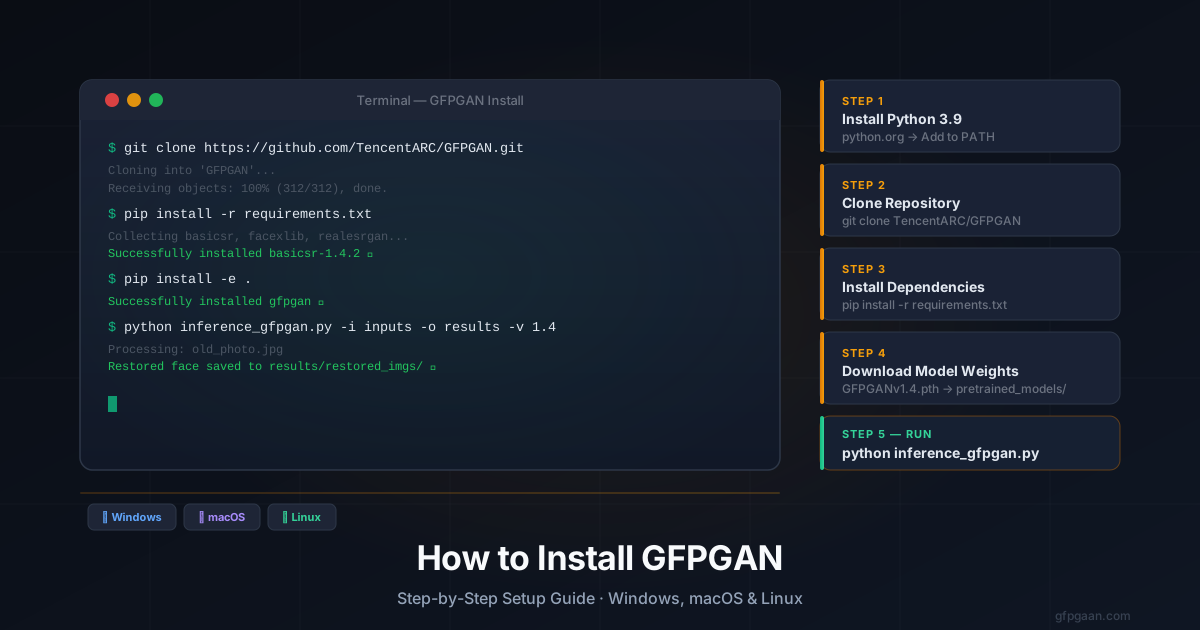
How Do You Install GFPGAN? Complete Setup Guide for Windows, Mac & Linux
Step-by-step guide to install GFPGAN on Windows, Mac, and Linux. Covers Python setup, model download, common errors, and how to run your first restoration.

Want to run GFPGAN on your own machine? Installing GFPGAN takes about 10 minutes if you follow the right steps. This guide walks you through every step — from Python setup to your first restored photo.
If you just want a quick sharpen-and-clean pass without installing anything, the free photo enhancer on this site works instantly in your browser — but it is a classical filter, not GFPGAN. For real GFPGAN output with no install, use the hosted Replicate endpoint.
Skip the Setup — Use the Browser Tool
Restore Photos Free — No Installation Required
Works on any device. 100% private. Results in under 2 seconds.
Try the Free Tool →But if you need offline access, batch processing, or want to integrate GFPGAN into a Python pipeline — a local install is the right choice. Keep reading for the full step-by-step setup.
What You Need Before Installing GFPGAN
Before running a single command, make sure your system meets the basic requirements. Missing any of these is the most common reason installs fail halfway through. Checking them now saves time later.
- Python 3.8–3.10 — GFPGAN works best in this range. Python 3.11+ can cause dependency issues with BasicSR and related libraries.
- pip — Python’s package manager, included automatically with Python.
- Git — needed to clone the GFPGAN repository from GitHub.
- 4 GB free disk space — accounts for the code, all dependencies, and the model weight files.
- GPU (optional but recommended) — an Nvidia GPU with CUDA support makes processing 10–20× faster. CPU works, just slower per image.
Check Your Python Version
Open your terminal and run this command before anything else. It takes one second and confirms you are working with a compatible Python version.
python --versionIf you see Python 3.8.x through Python 3.10.x, you are ready to proceed. If you are on Python 3.11 or higher, install 3.9 alongside it — use pyenv on Mac or Linux, or download a separate installer from python.org on Windows.
Step 1 — Clone the GFPGAN Repository
The first step is to download the GFPGAN source code to your local machine. Open a terminal — Command Prompt or PowerShell on Windows, Terminal on Mac and Linux — and run the following commands.
git clone https://github.com/TencentARC/GFPGAN.git
cd GFPGAN
This creates a folder called GFPGAN in your current directory and downloads the full project into it. The cd GFPGAN command moves you inside that folder, where all the remaining steps take place.
Step 2 — Create a Virtual Environment
A virtual environment isolates GFPGAN’s dependencies from the rest of your Python projects. This prevents version conflicts that would otherwise cause confusing errors later. It is a strongly recommended step, not optional.
Using venv (Recommended)
The venv module is built into Python and works on every platform. Run this to create the environment.
python -m venv gfpgan-envThen activate it with the command for your platform:
- Windows:
gfpgan-env\Scripts\activate - Mac / Linux:
source gfpgan-env/bin/activate
Once active, you will see (gfpgan-env) at the start of your terminal prompt. This means all packages you install from this point go into the isolated environment and not your global Python installation.
Using Conda Instead
If you work with Anaconda or Miniconda, you can create an equivalent environment with these two commands. Either approach works — choose whichever you are more comfortable with.
conda create -n gfpgan python=3.9
conda activate gfpgan
Step 3 — Install Dependencies
With your virtual environment active, install all the required libraries. GFPGAN depends on several packages that need to be installed in the correct order.
pip install -r requirements.txt
pip install basicsr facexlib realesrgan
pip install -e .
The first command installs everything listed in the project’s requirements file. The second installs BasicSR — the underlying restoration framework — along with facexlib for face detection and Real-ESRGAN for optional background upscaling. The final pip install -e . installs GFPGAN itself in editable mode, making it importable from any directory on your system.
Windows users: If you see errors about
torchor CUDA during this step, install PyTorch manually first. Visit pytorch.org, select your OS and CUDA version, copy the generated install command, and run it before retrying the steps above.
Step 4 — Download the GFPGAN Model Weights
GFPGAN cannot run without its pre-trained model files. These .pth files are not included in the repository because of their size, so you need to download them separately and place them in the correct folder.
# Create the folder if it does not already exist
mkdir -p experiments/pretrained_models

# Download GFPGANv1.4 — recommended for most photos
wget https://github.com/TencentARC/GFPGAN/releases/download/v1.3.4/GFPGANv1.4.pth \
  -P experiments/pretrained_models
Windows users without wget can download the .pth file directly from the GFPGAN GitHub releases page using a browser, then paste it manually into the experiments/pretrained_models/ folder.
Available Model Versions
There are four model versions to choose from, each optimised for a different use case. GFPGANv1.4 is the best starting point for the majority of photos.
| Model | Strength | Best For |
|---|---|---|
| GFPGANv1.2 | Light | Mild blur, modern photos |
| GFPGANv1.3 | Medium | Balanced quality and identity retention |
| GFPGANv1.4 | Strong | Old and heavily damaged photos (recommended) |
| RestoreFormer | Highest | Maximum fine detail (slower) |
Step 5 — Run Your First Restoration
Place a test image in the inputs/whole_imgs/ folder, then run the inference script. This is the command that actually processes your photo and writes the restored version to disk.
python inference_gfpgan.py \
  -i inputs/whole_imgs \
  -o results \
  -v 1.4 \
  -s 2
What These Flags Mean
Each flag controls a different part of how GFPGAN processes your image. Understanding them lets you adapt the command for different inputs and quality targets.
-i— path to your input folder containing the photos to restore-o— path to the output folder where results will be saved-v 1.4— which GFPGAN model version to use-s 2— upscale factor applied to the output (2 means twice the original resolution)
Your restored photos will appear in results/restored_imgs/ after the script finishes.
Platform-Specific Setup Notes
The core installation steps are the same across all platforms, but each operating system has a few specific considerations worth knowing before you start.
How to Install GFPGAN on Windows
Windows is the most common platform for first-time installs. Follow these steps in order and the setup will complete without issues.
- Install Python 3.9 from python.org — check “Add to PATH” during the installation wizard
- Install Git from git-scm.com
- Open Command Prompt and clone the repository
- Create and activate a venv:
python -m venv envthenenv\Scripts\activate - Install dependencies:
pip install -r requirements.txt && pip install basicsr facexlib realesrgan && pip install -e . - Download
GFPGANv1.4.pthand place it insideexperiments/pretrained_models/ - Run:
python inference_gfpgan.py -i inputs/whole_imgs -o results -v 1.4 -s 2
How to Install GFPGAN on macOS
The core steps are identical to Windows. macOS users only need to handle a couple of extra differences related to Git installation and Apple Silicon GPU support.
- Use Homebrew to install Git if it is not already on your system:
brew install git - On Apple Silicon (M1/M2/M3 chips), install PyTorch with MPS backend support to enable GPU acceleration through Metal:
pip install torch torchvision torchaudioMPS (Metal Performance Shaders) allows GFPGAN to use your Mac’s GPU rather than running entirely on the CPU, which significantly reduces processing time per image.
How to Install GFPGAN on Linux
Linux installation follows the same five steps as the main guide. The only common extra requirement is the build tools package, which some minimal Linux distributions do not include by default.
If you hit a compilation error during the dependency install step, run this first and then retry pip install -r requirements.txt.
sudo apt-get install build-essential python3-devCommon GFPGAN Installation Errors and Fixes
Most installation problems come down to a small set of predictable causes. The fixes below resolve the errors that appear most frequently across all three platforms.
Error: No module named 'basicsr'
This happens when the virtual environment was not active during the initial install. Activate your environment first, then run pip install basicsr followed by pip install -e . again.
Error: No GFPGAN model found
The .pth file is either missing or placed in the wrong location. It must be inside experiments/pretrained_models/ with the exact filename GFPGANv1.4.pth. Check the path carefully — a missing subfolder or a typo in the filename is the usual cause.
Error: CUDA out of memory
Your GPU does not have enough VRAM for the current settings. Add --bg_upsampler None to disable background upscaling, or lower the upscale factor to -s 1 to reduce memory usage.
Error: torch version mismatch
Uninstall the existing PyTorch installation and reinstall it using the exact command from pytorch.org for your CUDA version. GFPGAN’s dependencies are sensitive to which version of PyTorch and CUDA are paired together.
Error: cannot find -lstdc++ on Linux
This means the C++ standard library build tools are missing. Run sudo apt-get install build-essential to install them, then retry the dependency install.
GFPGAN Online vs Local Installation
Not sure which approach fits your workflow? This comparison covers the most important factors side by side so you can make the right choice for your situation.
| Feature | Online Tool | Local Install |
|---|---|---|
| Setup time | Zero | ~10 minutes |
| Privacy | 100% local (browser) | 100% local |
| Batch processing | No | Yes |
| GPU acceleration | Not needed | Optional |
| Works offline | No | Yes |
| Custom models | No | Yes |
| Technical skill needed | None | Moderate |
Use the online tool if you need to restore a photo quickly, occasionally, or on a device where you cannot install software. The browser tool is instant, free, and requires nothing.
Install locally if you are processing many photos at once, need automation through scripts, want to experiment with different model versions, or need the tool to work without internet access.
Pros and Cons of Installing GFPGAN Locally
Running GFPGAN on your own machine opens up capabilities that the browser tool cannot provide, but it also introduces complexity that may not be worth it for every user.
Pros
For developers, researchers, and anyone processing photos in bulk, the local install delivers clear advantages.
- Full control — run any model version and adjust every inference parameter
- Batch processing — restore hundreds or thousands of photos in a single command
- Offline — works without internet after the initial setup and model download
- Scriptable — integrate GFPGAN into Python pipelines, automations, and larger workflows
- Free forever — no usage limits, no rate limits, no subscription required
Cons
These are the real trade-offs that make the local install unsuitable for some users.
- Setup time — 10–15 minutes the first time, longer if dependency issues arise
- Dependencies — Python version and package conflicts can be difficult to debug
- Disk space — model files and Python dependencies add up to several gigabytes
- GPU dependency — CPU-only processing is noticeably slow on large batches of images
Related Guides
Want to understand how GFPGAN works before you decide whether a local install is worth the effort?
- GFPGAN AI Face Restoration: Complete Guide — Covers the technology behind the model, what photo types it handles best, and how to get the sharpest results from every restoration.
- Face Restoration Guide — the broader concept explained, with links into every related guide.
- Face Restoration in Automatic1111 & ComfyUI — if you’re installing GFPGAN to use inside a Stable Diffusion pipeline rather than standalone.
Frequently Asked Questions
What Python version does GFPGAN need?
GFPGAN works best with Python 3.8, 3.9, or 3.10. Python 3.11 and above can cause compatibility issues with BasicSR and several other core dependencies. Python 3.9 is the safest choice and gives the smoothest installation experience across all platforms.
Do I need a GPU to run GFPGAN?
No, a GPU is not required. GFPGAN runs on CPU alone, but processing is significantly slower — expect 10 to 30 seconds per image on CPU compared to under 2 seconds with a GPU. For restoring one or two photos occasionally, CPU is perfectly fine. For batch processing, a GPU makes a substantial difference.
Where do I download the GFPGAN model files?
All model weight files are available on the official GFPGAN GitHub releases page. Download GFPGANv1.4.pth for the best balance of quality and speed, and place it in the experiments/pretrained_models/ directory inside your GFPGAN folder.
Can I run GFPGAN without installing anything?
Yes — the Replicate endpoint and the official Hugging Face Space both run the real GFPGAN model with no install, no Python, and no GPU of your own. Both process server-side, so your image is uploaded.
How do I update GFPGAN to the latest version?
Navigate to your GFPGAN project folder and run git pull to fetch the latest changes from the repository. Then run pip install -r requirements.txt again to pick up any updated or added dependencies.
Can I run GFPGAN in Google Colab?
Yes. Community-maintained notebooks are available that run GFPGAN entirely in the cloud with GPU support and no local setup required. Search for “GFPGAN Colab notebook” to find a current one. It is a good option if you want GPU speed without owning a compatible GPU.
How do I process a whole folder of photos at once?
Pass the path to your folder using the -i flag: python inference_gfpgan.py -i path/to/photos -o results -v 1.4 -s 2. GFPGAN will detect and restore every supported image in that folder automatically and write each result to the output directory.
Conclusion
Installing GFPGAN locally gives you full control over AI face restoration — batch processing, custom model selection, offline use, and no limits of any kind. The setup takes about 10 minutes and the steps are identical across Windows, Mac, and Linux.
If you run into errors, the three most reliable fixes are: use Python 3.9, confirm the model file is in the correct folder with the correct filename, and reinstall PyTorch with the exact CUDA version matching your GPU.
Prefer a faster start? Try the free online GFPGAN tool — no installation required, 100% private, and results in seconds.