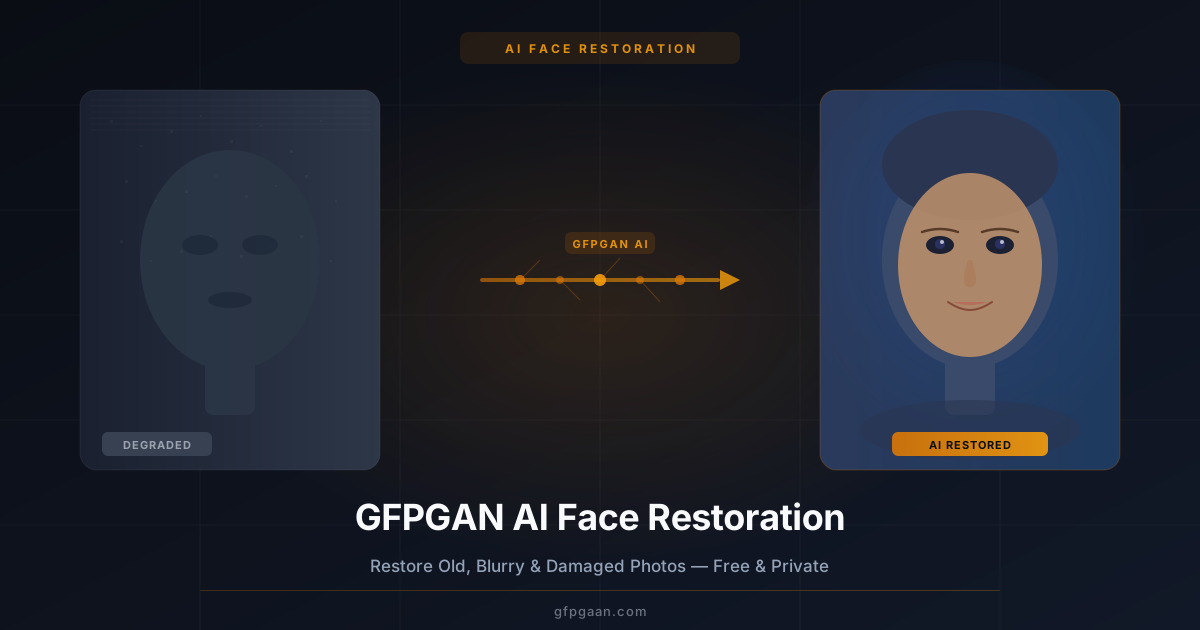
GFPGAN AI Face Restoration: Restore Old and Blurry Photos in Seconds
Learn how GFPGAN AI face restoration fixes blurry, damaged, and old photos instantly. Free, browser-based, no app needed. Step-by-step guide inside.

Old family photos fade. Downloaded images blur. Scanned portraits lose detail. GFPGAN AI face restoration fixes all of that — and the model is free and open-source, so you can run it yourself.
Whether you have a torn wedding photo from the 1970s or a pixelated selfie, GFPGAN uses deep learning to rebuild faces with stunning clarity. No software to install. No account required. Just upload and restore.
This guide explains exactly what GFPGAN is, how it works, and how to get the best results from it.
What Is GFPGAN AI Face Restoration?
GFPGAN stands for Generative Facial Prior Generative Adversarial Network. It is an AI model developed by researchers at Tencent ARC to restore degraded face images. In plain English, it looks at a blurry or damaged photo, figures out what the face should look like, and fills in the missing details automatically.
A Brief History
GFPGAN was first published in 2021 and quickly became one of the most popular open-source face enhancement tools in the world. It introduced a breakthrough approach — using a generative facial prior trained on thousands of high-quality face images — that set it apart from every simple upscaling tool before it. Since then, millions of people have used it to bring old and damaged photos back to life. The model is fully open-source and continues to be maintained by the research community.
Why GFPGAN Is Different From Other Tools
Most face enhancers simply run a sharpening filter or stretch pixels to make an image look larger. GFPGAN takes a fundamentally different approach — it rebuilds faces using a deep understanding of how human facial structures actually look. The result is natural, detailed, and identity-preserving — not the artificial, plastic finish you see from basic AI tools.
How Does GFPGAN Work?
Most image upscalers just stretch pixels — which makes photos look soft and smeared. GFPGAN does something smarter. It uses a generative facial prior — essentially a deep knowledge of what human faces look like — to reconstruct missing details from scratch. The model does not guess randomly; it draws on patterns learned from millions of real face images.
The Four-Stage Pipeline
GFPGAN processes every photo through a precise four-step sequence. Each stage builds on the last, allowing the model to go from a degraded input to a fully sharp and coherent face.
- Face detection — The AI locates every face in your photo.
- Feature encoding — It analyzes the degraded face and extracts whatever information is still there: shape, rough texture, and color.
- Prior injection — The model pulls from its trained knowledge of face structure to fill in what is missing.
- Blending — The restored face is seamlessly merged back into the original image.
The result is a sharp, natural-looking face — not an artificial, over-smoothed one.
How to Use GFPGAN AI Face Restoration (Step-by-Step)
Using GFPGAN online takes less than a minute. There is no Python to install, no files to download, and no account required. The entire process runs inside your browser.
Step 1 — Open the Free Restore Tool
The tool is built directly into this site. Scroll to the Live Tool section on the homepage or use the link below. No sign-up is needed at any point.
Step 2 — Upload Your Photo
Click the upload area or drag and drop your image directly onto it. Supported formats are JPG, PNG, and WebP. The larger and higher-resolution your source file, the better the restored result will be.
Step 3 — Choose Your Model
GFPGAN offers several model versions, each tuned for a different level of damage. For most photos, the default v1.4 model works best. For heavily damaged or very old images, try a stronger variant to push more detail recovery.
Step 4 — Run Restoration
Click Restore. The AI processes your image entirely in your browser — your photo never leaves your device at any point during or after processing.
Step 5 — Download the Result
Use the before-and-after slider to compare the original and restored versions side by side. When you are happy with the result, download your photo in full resolution with one click.
Free Online Tool — No Installation
Try GFPGAN Right Now in Your Browser
Upload any photo. Restore in seconds. 100% private — nothing leaves your device.
Restore a Photo Free →Privacy note: A local GFPGAN install processes everything on your own machine — nothing is uploaded at any stage. Hosted demos such as Replicate and Hugging Face do receive your image, so check their retention terms before sending identifiable photos.
What Types of Photos Can GFPGAN Restore?
GFPGAN works best on photos that contain human faces. It is not a general-purpose image enhancer — it is specifically trained on facial features and performs differently from a full-image upscaler. Understanding what it handles well helps you get the best output every time.
Best Photo Types for GFPGAN
The model handles a wide range of damage types and input quality levels. Here are the photo categories it restores most reliably.
- Old scanned photos — faded, yellowed, or low-resolution prints from film or paper
- Blurry portraits — motion blur, out-of-focus shots, and camera shake
- Compressed images — heavy JPEG artifacts and pixelation from lossy compression
- Low-light photos — grainy, noisy images taken in poor lighting conditions
- Damaged photos — water stains, scratches, and fold marks (partial repair)
- Low-resolution crops — small faces cropped from wide-angle group shots
Pairing GFPGAN with Real-ESRGAN
GFPGAN only enhances the face areas of a photo — it does not touch backgrounds, objects, or other non-face regions. For a complete, polished result, pair it with Real-ESRGAN. Run GFPGAN first to restore the faces, then pass the output through Real-ESRGAN to upscale and sharpen the full image. This two-pass workflow consistently produces the best overall quality.
GFPGAN vs Other AI Face Restoration Tools
How does GFPGAN stack up against other popular options? The table below compares the most widely used tools across the key factors that matter most.
| Tool | Best For | Free? | Privacy | Speed |
|---|---|---|---|---|
| GFPGAN | Face restoration, old photos | Yes | 100% local | Fast |
| CodeFormer | High identity retention | Yes | Server-based | Medium |
| Real-ESRGAN | Full-image upscaling | Yes | Local / API | Fast |
| Remini | Mobile casual use | Freemium | Cloud | Fast |
| Topaz Photo AI | Professional editing | Paid | Local | Slow |
Key takeaway: GFPGAN is the best free option for restoring faces specifically, especially when privacy matters. CodeFormer produces slightly sharper results on modern portrait photos, but GFPGAN is faster and requires no server upload.
Pros and Cons of GFPGAN
Every tool has trade-offs. Here is an honest breakdown of what GFPGAN does well and where it has limitations — so you can decide if it is the right choice for your photos.
Pros
GFPGAN offers a set of advantages that make it stand out from both paid and free alternatives.
- Completely free — no subscription, no watermark, no usage cap
- Private when run locally — a local install never sends your photo anywhere
- Fast processing — most photos restore in under two seconds
- Multiple model variants — choose the right strength for your image
- No installation — works on any device with a modern browser
- Open source — transparent, community-audited technology
Cons
There are a few real limitations worth knowing before you rely on it for important photos.
- Face-specific — does not enhance backgrounds or non-face areas
- Identity shifts — on heavily degraded photos, fine features may change slightly
- Best with frontal faces — extreme angles or partial faces get weaker results
- No batch processing — currently processes one photo at a time in the browser
Tips for Getting the Best Results
Small adjustments in how you prepare and upload your photo can make a significant difference in output quality. These tips apply whether you are using the online tool or running GFPGAN locally.
Before You Upload
Start with the best possible source material. Even a blurry photo benefits from being as large as possible before restoration. A 2000px blurry image gives the model far more data to work with than a 400px blurry image — and the output will be noticeably sharper.
If your subject’s face is small in the frame, crop tighter before uploading. GFPGAN performs best when the face occupies a large portion of the image. A close crop also speeds up processing and reduces the chance of the model missing fine details.
Getting More Detail
Experiment with different model versions when the default result does not satisfy you. GFPGAN v1.4 handles most photos well, but for portraits with extreme degradation, v1.3 sometimes preserves more of the original character and identity.
Avoid running the same photo through restoration more than once. Re-processing does not stack improvements — it can actually introduce subtle artifacts and over-smooth the skin. One clean pass is almost always the best result you will get.
After restoring the face with GFPGAN, upscale the full image with Real-ESRGAN for a polished, print-ready final output.
Related Guides
If you want to go deeper with GFPGAN, this article covers the next step for power users.
- How to Install GFPGAN on Windows, Mac & Linux — Run GFPGAN locally for batch processing, offline use, and full control over every model parameter.
- Face Restoration Guide — the broader concept, disambiguated from forensic and medical usage, with links into every related guide.
- How to Restore Old, Blurry Photos with AI — the most common real-world use case, step by step.
- Face Restoration in Automatic1111 & ComfyUI — for Stable Diffusion users who want restoration inside their generation pipeline.
Frequently Asked Questions
Is GFPGAN AI face restoration completely free?
Yes. The tool on this site is fully free with no hidden costs, no account required, and no watermarks on downloaded images. There are no usage limits either — restore as many photos as you need.
Does GFPGAN upload my photos to a server?
It depends how you run it. A local GFPGAN install processes everything on your own machine, so your photos never leave your device — this is the most privacy-friendly option. Hosted demos (Replicate, Hugging Face Spaces) necessarily upload your image to their servers.
Will GFPGAN change what the person looks like?
On mildly degraded photos, the results are very accurate and faithful to the original. On severely damaged or extremely low-resolution images, the AI makes its best guess based on facial structure. There may be subtle differences in fine features like eye color or hair texture in those extreme cases.
What is the difference between GFPGAN and CodeFormer?
Both are open-source AI models for face restoration. GFPGAN is faster and excels at restoring old or heavily degraded photos. CodeFormer often retains more of the original identity on modern portrait photos with mild damage. For most users, GFPGAN is the better starting point because of its speed and privacy.
Can GFPGAN restore group photos?
Yes. GFPGAN automatically detects and restores every face in a group photo. The model processes each face individually, so all subjects in the frame benefit from the same restoration regardless of their position or size in the image.
Does GFPGAN work on black and white photos?
Yes, though it restores sharpness and detail rather than adding color. The output remains in black and white. If you also want to colorize the photo, use a dedicated AI colorization tool after running GFPGAN — restoration first, colorization second gives the cleanest result.
What file formats does GFPGAN support?
The online tool supports JPG, PNG, and WebP. For best results, upload and download in PNG to avoid any additional compression artifacts being introduced into the restored output.
Conclusion
GFPGAN AI face restoration is the fastest, most private way to fix old, blurry, and damaged photos. It takes seconds, costs nothing, and runs entirely on your device — no account, no installation, no limits.
Whether you are rescuing a century-old family portrait or sharpening a pixelated screenshot, GFPGAN delivers professional-quality results without requiring any technical skill.
Ready to try it? Restore your first photo free — no sign-up, no wait.