How to Enable Face Restoration in Automatic1111 and ComfyUI
Enable GFPGAN and CodeFormer face restoration in Automatic1111, Forge, and ComfyUI — with fixes for the 'model not found' errors people hit most.

Stable Diffusion faces are often close, but not quite right — slightly asymmetric eyes, soft detail, or a subtle uncanny-valley quality. Both Automatic1111 and ComfyUI ship with face restoration built in or available as an extension. This guide covers exactly how to enable it in each, plus the specific errors people run into.
Face Restoration in Automatic1111 (and Forge)
Automatic1111 WebUI bundles GFPGAN by default and supports CodeFormer as an alternative. Both live under the generation settings.
- Enable the checkbox. In the
txt2imgorimg2imgtab, expand the settings below the prompt box and check “Restore faces.” This runs face restoration automatically on every generated image. - Choose the model. Go to
Settings → Face restoration. PickGFPGAN(faster, better on heavily degraded or stylized faces) orCodeFormer(better identity fidelity on realistic portraits) as the default model. - Set CodeFormer’s fidelity weight (if selected) — a value between 0 and 1. Lower values lean toward the AI’s reconstruction; higher values stay closer to the original generated face.
0.5is a reasonable starting point. - Forge UI uses the same settings location and behavior as Automatic1111 — “Restore faces” checkbox plus the same
Settings → Face restorationpanel, since Forge is a fork of the same codebase.
If you don’t see the “Restore faces” checkbox, it may be hidden under Settings → User interface → Quick settings list — add face_restoration there, or check the Actions column visibility in newer WebUI versions.
Face Restoration in ComfyUI
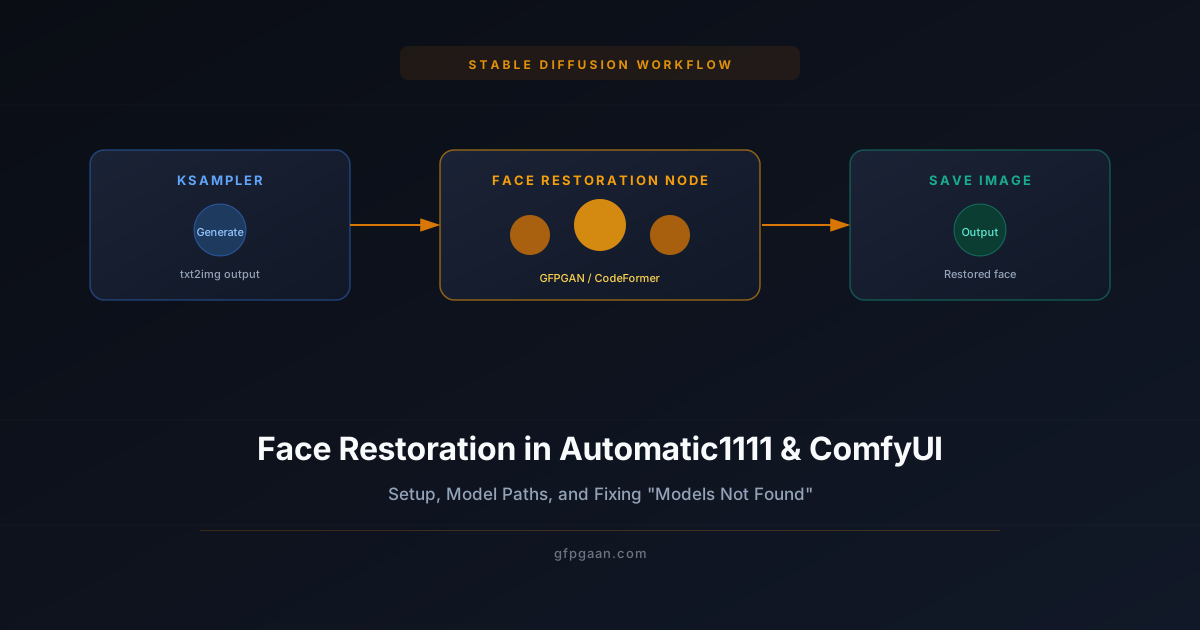
ComfyUI doesn’t bundle face restoration by default — it uses a node-based workflow, so you add a dedicated face restoration node:
- Install the ComfyUI-Impact-Pack or a dedicated face-restoration node pack (such as comfyui-reactor or facerestore nodes) through the ComfyUI Manager.
- Download the GFPGAN or CodeFormer model weights and place them in the correct folder — typically
ComfyUI/models/facerestore_models/(exact folder name depends on which node pack you installed; check the node’s README). - Add the face restoration node to your workflow graph, usually placed after your KSampler/VAE Decode output and before any final upscale node.
- Connect the image output from your generation pipeline into the face restoration node’s input, then run the workflow.
Fixing “Face Restoration Models Not Found”
This is the most common error, and it almost always comes down to file placement:
- Check the exact folder. Automatic1111 expects GFPGAN weights in
stable-diffusion-webui/models/GFPGAN/and CodeFormer weights instable-diffusion-webui/models/Codeformer/. ComfyUI face-restoration node packs typically expectComfyUI/models/facerestore_models/— but always confirm against the specific node pack’s documentation, since this varies by extension. - Check the filename. Some installs expect an exact filename match (e.g.
GFPGANv1.4.pth) rather than any.pthfile in the folder. - Restart after adding the file. Both WebUI and ComfyUI scan model folders at startup — dropping a new file in mid-session usually requires a restart or a manual “refresh” of the model list.
- Re-download if the file is corrupted. A partial or interrupted download produces a file that exists but fails to load — delete and re-download from the model’s official source.
Fixing “Unable to Load Face Restoration Model”
If the file is present but still won’t load:
- Confirm the
.pthfile size matches the official release (a truncated download is the most common cause). - Check that your PyTorch/CUDA version is compatible with the WebUI or ComfyUI version you’re running — very old or very new installs occasionally break compatibility with older model checkpoints.
- Check the console/terminal output for the specific exception — a
RuntimeErrormentioning key mismatches usually means the file is the wrong model version for the code expecting it (e.g. a v1.2 checkpoint loaded by code expecting v1.4’s architecture).
Fixing “Stable Diffusion Face Restoration Missing” After an Update
WebUI updates occasionally reset or relocate the models/GFPGAN and models/Codeformer folders. If face restoration options disappear after an update:
- Confirm the folders still exist at the expected path — reinstalls sometimes create fresh, empty model directories.
- Re-copy your model weights back into place.
- Check
Settings → Face restorationto confirm the model dropdown is populated again.
Related Guides
- Face Restoration Guide — what face restoration is and the different model types.
- CodeFormer vs GFPGAN — which model to pick for which photo type.
- What Is GFPGAN? — full explainer on how the model works.
- Best AI Face Restoration Tools & Apps — options if you’d rather skip local setup entirely.
Frequently Asked Questions
Does Automatic1111 use GFPGAN or CodeFormer by default?
Automatic1111 ships with GFPGAN as the default face restoration model, but CodeFormer is available as a built-in alternative — switch between them under Settings → Face restoration.
Why does ComfyUI not have face restoration built in?
ComfyUI is node-based and intentionally minimal by default — face restoration is added through community node packs (like ComfyUI-Impact-Pack or dedicated facerestore nodes) rather than being bundled, so users only install what their workflow needs.
Where do I put GFPGAN model files in Automatic1111?
Place the .pth weights file in stable-diffusion-webui/models/GFPGAN/. Restart the WebUI (or use the refresh button next to the model dropdown) so it picks up the new file.
Can I skip local setup and just restore a face online?
Yes — the Replicate endpoint and the Hugging Face Space both run GFPGAN with no setup at all, though they process server-side. For a no-upload quick pass, the free enhancer on this site sharpens and cleans photos locally in your browser.