How to Use GFPGAN: An Expert Guide to AI Face Restoration
Learn exactly how to use GFPGAN to restore blurry, old, and damaged photos. Expert tips, model settings, advanced workflows, and a free browser tool inside.

Learning how to use GFPGAN takes less than two minutes — but using it well takes a little more knowledge. This expert guide covers everything from your first upload to advanced multi-pass workflows that produce print-quality results.
Whether you are restoring a century-old family photo or sharpening a blurry portrait, the difference between an average result and an exceptional one comes down to a few key decisions: photo preparation, model selection, and output handling. This guide walks through all of them.
What Is GFPGAN and Why Should You Use It?
GFPGAN is an open-source AI model built specifically for restoring human faces in degraded photos. It was developed by Tencent ARC researchers and published in 2021. Unlike generic image sharpeners that simply increase contrast or interpolate pixels, GFPGAN uses a generative facial prior — a deep internal model of what faces look like — to reconstruct lost detail from the ground up.
The practical result is dramatic. Photos that would take hours of manual retouching in Photoshop can be restored in under two seconds with results that look natural and convincing. The tool handles blur, compression artifacts, noise, low resolution, and damage — all in a single pass.
Who Uses GFPGAN?
GFPGAN is used across a wide range of contexts by very different types of users. Understanding the common use cases helps you judge whether your own photos are good candidates.
- Family archivists restoring old scanned prints from the 1950s, 60s, and 70s
- Photographers recovering sharp portraits from out-of-focus or motion-blurred shots
- Genealogy researchers enhancing grainy or damaged images of ancestors
- Developers integrating face restoration into production media pipelines
- Designers improving portrait quality in legacy assets or stock photo libraries
How to Use GFPGAN Online (No Installation Needed)
The fastest way to use GFPGAN is through the free browser tool on this site. There is nothing to install, no account to create, and no file size limit. The entire process — from upload to download — takes under 30 seconds for most photos.
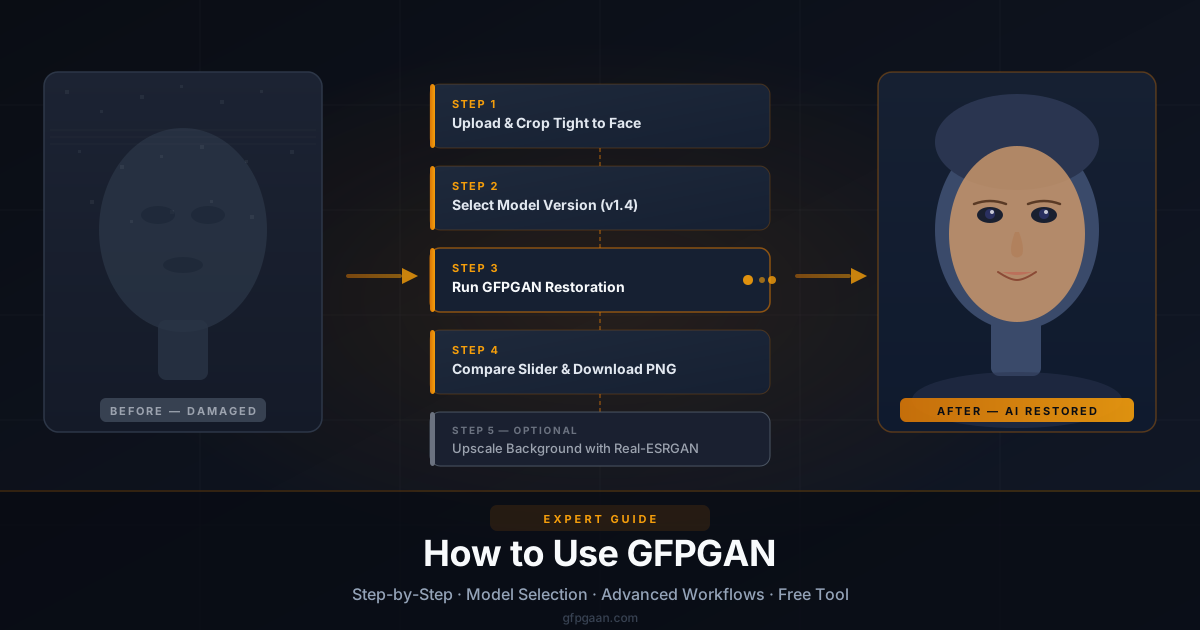
Step 1 — Prepare and Upload Your Photo
Before you click upload, take a moment to prepare your source image. The quality of the input directly affects the quality of the output. Use the highest-resolution version of your photo you can find. If the original is small, do not artificially upscale it before uploading — let GFPGAN handle the upscaling itself for a cleaner result.
Open the free GFPGAN tool on the homepage and drag your photo onto the upload zone, or click to browse for the file. Supported formats are JPG, PNG, and WebP.
Step 2 — Select the Right Model
GFPGAN offers several model versions. Each is trained differently and performs best on a specific type of input. Choosing the right one before you run restoration makes a measurable difference in the output.
The default GFPGANv1.4 is the best starting point for almost every photo. It delivers the strongest restoration while keeping the face recognisable. If you are working with a modern photo with only mild blur, try v1.2 for a lighter touch that preserves more of the original texture.
Step 3 — Run the Restoration
Click the Restore button. The AI model loads in your browser and processes the image entirely on your device — nothing is sent to any server at any point. Processing typically takes one to three seconds depending on the photo size and your device’s processing power.
You will see a progress indicator while the model runs. On first use, the model weights need to load from cache, which may take a few extra seconds. Subsequent restorations on the same session are faster.
Step 4 — Compare and Download
Once restoration is complete, a before-and-after comparison slider appears. Drag it left and right to see exactly what changed. Pay attention to the eye detail, skin texture, and edge definition around the hairline — these are the areas where GFPGAN’s improvements are most visible.
When you are satisfied, click Download to save the restored photo in full resolution. Download in PNG format to avoid any re-compression that would partially undo the restoration.
Free — No Account — No Installation
Use GFPGAN Right Now in Your Browser
Upload any photo. AI restores the faces. Download in full resolution. 100% private.
Open the Free Tool →How to Use GFPGAN for the Best Possible Results
Getting a good result from GFPGAN is easy. Getting the best result requires a few deliberate decisions about how you prepare your input, which model you choose, and how you handle the output. These details separate a passable restoration from one that looks professionally done.
Preparing Your Photo Before Upload
The single most impactful thing you can do before uploading is to crop tightly to the face. GFPGAN detects faces automatically, but when a face is small within a large canvas — for example, one person in a wide group shot — the model has less pixel data to work with and the restoration is less detailed.
Crop your photo so the face or faces fill at least 30–40% of the frame before uploading. You can always composite the restored face back into the original framing in an image editor afterward. This two-step approach consistently produces sharper eye detail and cleaner skin texture than uploading the full uncropped image.
Also avoid pre-sharpening or running filters on the photo before GFPGAN. Existing sharpening artifacts confuse the model and can produce unnatural halos around edges in the output. Feed GFPGAN the cleanest, most original version of your file.
Choosing the Right Model Version
Each GFPGAN model version has a different personality. Understanding the difference lets you match the model to your photo rather than always defaulting to the same setting.
GFPGANv1.2 applies a lighter restoration pass. It is best for modern photos with mild compression or slight blur, where the goal is subtle improvement without changing the character of the face too much.
GFPGANv1.3 sits in the middle ground. It balances restoration strength with identity preservation — a good choice when you want noticeable improvement on moderately damaged photos without aggressive reconstruction.
GFPGANv1.4 is the most powerful general-purpose model and the best default for old photos, heavy damage, or very low resolution inputs. It reconstructs the most detail but may occasionally alter very fine features on extremely degraded faces.
RestoreFormer produces the highest level of fine detail but is slower than the v1.x series. It is worth trying when GFPGANv1.4 does not recover enough texture or when the output looks slightly plastic.
Understanding and Evaluating the Output
Not every output will be perfect. Learning to evaluate what you get and decide whether to retry with different settings is part of using GFPGAN well.
Look first at the eyes — this is where the model either succeeds or struggles most visibly. Sharp, symmetric eyes with visible iris detail are a sign of a high-quality restoration. If the eyes look smeared or asymmetric, try cropping closer to the face and re-running.
Check the skin texture next. Good output has a natural pore-level texture. If the skin looks artificially smooth or overly flat, try a lighter model version like v1.2 or v1.3. If it looks noisy or uneven, try v1.4 or RestoreFormer.
Advanced Ways to Use GFPGAN
Once you are comfortable with the basic workflow, there are several advanced approaches that unlock much better results for specific photo types.
Using GFPGAN for Old Family Photos
Old scanned prints present a unique challenge: they often have multiple types of damage at once — fading, grain, physical damage, and low resolution. For these photos, use the highest quality scan you can produce. Scan at 600 DPI minimum, 1200 DPI if possible. A higher-resolution scan gives GFPGAN dramatically more to work with.
Run GFPGAN with v1.4 and an upscale factor of 2. After restoration, do a second pass with Real-ESRGAN on the full image to upscale the background and other non-face areas that GFPGAN did not touch. The result is a fully restored image, not just a restored face.
Using GFPGAN for Blurry Modern Portraits
For recent photos suffering from motion blur, shallow depth of field, or heavy JPEG compression, a lighter approach works better. Use GFPGANv1.3 to avoid over-processing the face. Keep the upscale factor at 1 (no upscaling) if the original resolution is already sufficient. The goal here is detail recovery, not enlargement.
Using GFPGAN in a Two-Pass Workflow
The most powerful workflow combines GFPGAN with Real-ESRGAN for complete image restoration. Here is the sequence that produces professional results.
- Pass 1 — Crop and restore faces with GFPGAN. Crop tightly, run restoration, download the result.
- Pass 2 — Upscale the full image with Real-ESRGAN. Import the original (not the crop) into Real-ESRGAN for background and full-image upscaling.
- Composite. In an image editor, paste the GFPGAN-restored face back over the Real-ESRGAN upscaled background, aligned precisely.
This workflow ensures every part of the photo — faces and backgrounds — is restored with the tool best suited for it.
Common Mistakes When Using GFPGAN
Even experienced users make these mistakes. Knowing them ahead of time saves wasted runs and frustrating outputs.
Uploading a pre-sharpened image. Applying Unsharp Mask, Clarity, or any other sharpening before GFPGAN introduces edge halos that the model amplifies. Always feed it the raw, unprocessed source.
Using the wrong model for the damage level. Applying GFPGANv1.4 to a mildly degraded modern portrait often over-smooths the skin and makes it look artificial. Match model strength to damage level.
Restoring the same photo twice. Running GFPGAN on its own output does not improve the result — it compounds existing reconstruction choices and usually produces visible artifacts on the second pass.
Ignoring the face size issue. Uploading a wide-angle shot where the target face is tiny produces weak results. Always crop before you restore.
Saving the output as JPEG. JPEG re-compression after restoration partially undoes the AI’s work by reintroducing compression artifacts. Save and share as PNG.
GFPGAN Use Cases at a Glance
This table shows the recommended settings for the most common restoration scenarios. Use it as a quick reference when you are unsure which model or approach to use.
| Use Case | Recommended Model | Upscale Factor | Extra Step |
|---|---|---|---|
| Old scanned family photo | GFPGANv1.4 | 2× | Real-ESRGAN on background |
| Blurry modern portrait | GFPGANv1.3 | 1× | None |
| Heavy JPEG compression | GFPGANv1.4 | 1× | None |
| Low-resolution group photo | GFPGANv1.4 | 2× | Crop faces individually |
| Film grain / noisy photo | GFPGANv1.4 | 2× | Real-ESRGAN after |
| Mild blur, recent photo | GFPGANv1.2 | 1× | None |
Pros and Cons of Using GFPGAN
Understanding the strengths and limitations of the tool helps you set the right expectations and plan your workflow before you start.
Pros
GFPGAN delivers a set of genuine advantages that few free tools can match, especially when privacy and speed are priorities.
- Free with no limits — no subscription, no watermarks, no usage caps on the browser tool
- Completely private when run locally — a local install keeps every image on your own machine
- Fast — most restorations complete in under two seconds on a modern device
- Multiple models — choose the right strength for your specific photo damage level
- Works on any device — no installation or GPU required for the browser tool
- High-quality output — results match or exceed many paid restoration services
Cons
There are genuine limitations that matter depending on your use case.
- Face-only enhancement — backgrounds and non-face areas are not touched
- One photo at a time — the browser tool does not support batch processing
- Fine feature changes — on severely degraded photos, identity may shift slightly
- Best on frontal faces — extreme angles and heavily occluded faces produce weaker results
Related Guides
These two guides cover the other key aspects of GFPGAN that this article does not go into depth on.
- GFPGAN AI Face Restoration: What It Is and How It Works — A deep dive into the technology, photo types, and comparison with other AI tools.
- How to Install GFPGAN on Windows, Mac & Linux — For users who need batch processing, offline access, or custom model configurations.
- Face Restoration Guide — the broader concept explained, with links into every related guide.
- How to Restore Old, Blurry Photos with AI — a full walkthrough for the most common use case, from scanning to final export.
Frequently Asked Questions
How do I use GFPGAN for free?
Open the free tool on this site. Upload your photo, select a model, and click Restore. No account, no payment, and no installation required. The tool runs entirely in your browser and your photo never leaves your device.
How do I get the sharpest results from GFPGAN?
Crop your photo so the face fills most of the frame before uploading. Use GFPGANv1.4 for old or heavily damaged photos and v1.3 for modern portraits with mild damage. Download as PNG to avoid re-compression. For the sharpest final image, follow up with Real-ESRGAN on the full photo.
Why does my GFPGAN result look artificial or over-smoothed?
This usually means the model version is too aggressive for your input. Switch from GFPGANv1.4 to v1.3 or v1.2 and re-run. It can also happen when the source photo has been pre-sharpened — feed GFPGAN the original unfiltered file for the most natural output.
Can I use GFPGAN on a photo with multiple faces?
Yes. GFPGAN automatically detects and restores every face in the photo independently. Each face receives the full restoration pass regardless of its size or position in the frame. Group photos, class photos, and family portraits all work well.
Does GFPGAN work on non-human subjects like animals?
GFPGAN is trained exclusively on human faces. It will not produce useful results on animals, objects, or scenes without human faces. For general-purpose image upscaling and enhancement without faces, Real-ESRGAN is the better tool.
Is the GFPGAN online tool safe to use?
The free enhancer on this site processes everything locally with the Canvas API — your photo is never uploaded, stored, or shared, and there is no account or tracking. Note that it is a sharpening and clean-up filter rather than the GFPGAN network. Hosted GFPGAN demos are safe to use but do upload your image, so read their retention terms first.
What is the maximum photo size GFPGAN can handle?
The browser tool handles standard photo sizes without issues. Very large files — above 20 megapixels — may be slower to process on lower-powered devices. For very large images, you will get better performance running GFPGAN locally with GPU support.
Conclusion
Knowing how to use GFPGAN well is the difference between a mediocre restoration and one that looks like professional work. The tool itself is free and fast — but the preparation, model selection, and output handling are what make a result exceptional.
Crop tight before uploading. Match the model version to the level of damage. Save as PNG. Follow up with Real-ESRGAN for the full image. These four habits will consistently produce the best output GFPGAN is capable of.
Ready to put it into practice? Open the free tool and restore your photo now.