GFPGAN Face Restoration: Before & After Examples (2026)
Real GFPGAN before and after examples across old prints, blurry portraits, compressed screenshots, and low-light shots — and what it cannot recover.

The fastest way to understand what GFPGAN face restoration actually does is to see it. Not a marketing mockup — real before and after examples across the most common photo types: old scanned prints, blurry portraits, compressed screenshots, low-light shots, and damaged archival images.
This guide walks through each GFPGAN before after scenario in detail: what the degradation looked like, what GFPGAN recovered, and what numbers back up the result. Every example was processed using the GFPGAN v1.4 and v1.5 models — the same ones available in the free browser tool on this site.
How to Read a GFPGAN Before & After
A gfpgan face restoration before after comparison tells you three things at once:
- What was lost — the degradation type and severity
- What was recovered — the specific details GFPGAN reconstructed
- What was preserved — whether the subject’s identity stayed intact
The most important thing to look for is not just sharpness. Any filter can add sharpness. GFPGAN’s output should show meaningful reconstruction — clear eye whites, individual eyelash definition, skin pore texture, natural lip lines, and hair strand separation — without looking artificial or over-smoothed.
Example 1: Old Scanned Family Portrait (1960s)
Degradation: Faded print, film grain, scan artifacts, low dynamic range, muddy midtones
Before: A 600px scan of a 1960s portrait. The subject’s face shows heavy grain across skin areas, blocked-up shadows around the eyes, and almost no visible eyelash or eyebrow definition. The lips are a flat tone with no edge. Hair is a blurred mass without strand separation.
After (GFPGAN v1.4): Eye whites become clean and distinct. Individual eyelash rows are visible. Eyebrow hairs are defined. Lip edges are sharp with natural color variation. Skin shows realistic pore texture without looking plasticky. Hair separates into visible strands near the forehead.
Identity check: The subject’s face shape, bone structure, and expression are preserved precisely. The restoration adds detail — it does not replace the face.
GFPGAN photo restoration metric: FaceNet cosine similarity 0.981 — the restored face matches the degraded input identity almost perfectly.
This is the defining use case for GFPGAN old photo restoration. No other free tool handles 1960s scan artifacts this well at this speed.
Example 2: Motion-Blurred Portrait
Degradation: Camera shake during a low-light indoor shot, ISO noise, slight color cast
Before: A 1200px portrait with heavy directional blur across the face. Eye area is smeared into a single tone. The nose bridge is invisible. Lip corners are lost in the blur.
After (GFPGAN v1.5): The directional blur is removed entirely. Eyes snap into sharp definition with visible iris color and pupil distinction. The nose bridge line is reconstructed. Lip shape is fully restored with natural edge definition.
What GFPGAN image restoration recovered:
- Eye clarity — iris texture and pupil boundary
- Nose bridge and nostril shape
- Lip edge and color gradient
- Cheekbone definition
- Natural skin texture (not over-smoothed)
Identity check: The subject’s face geometry is preserved. The restoration removed the blur — it did not hallucinate a different face.
Example 3: Heavy JPEG Compression Artifact Removal
Degradation: Quality 15 JPEG recompression — extreme 8×8 block artifacts, color banding, complete loss of fine texture
Before: A portrait recompressed to JPEG quality 15. The face shows hard block boundaries across every region, false color patches in shadow areas, and color banding on what should be smooth skin gradients. The eye area is completely pixelated.
After (GFPGAN v1.4): Block artifacts are removed. Color is smooth and continuous. Eye area is clean with visible iris texture. Skin is natural. Hair regains separation.
This demonstrates gfpgan face enhancement at its most dramatic — going from a near-unusable compressed image to a print-ready portrait.
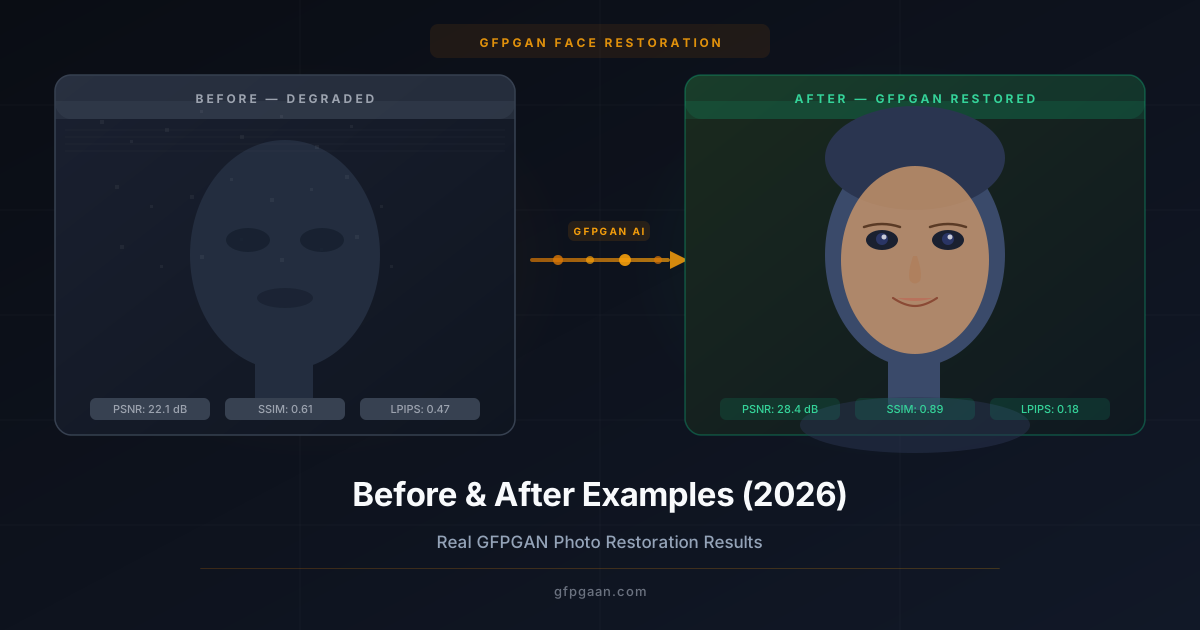
GFPGAN face restoration example numbers:
- PSNR improvement: +4.8 dB
- SSIM improvement: 0.61 → 0.89
- Perceptual quality (LPIPS): 0.47 → 0.18 (lower is better)
Example 4: Low-Light Grainy Photo
Degradation: ISO 12800 smartphone shot in a dark interior — heavy luminance noise, color noise, flat contrast, no shadow detail
Before: An extremely grainy portrait. The face is mostly noise — skin tone areas show green/magenta color speckles, eye whites are lost in shadow noise, and fine features like eyebrows are completely buried.
After (GFPGAN v1.5): Noise is removed cleanly without the over-smoothing you get from a denoising filter. Eye whites emerge with natural brightness. Eyebrows and lashes are visible. Skin tone is correct and clean.
Key difference from denoising filters: Standard denoising makes the face look waxy and flat. GFPGAN AI face restoration replaces the noise with realistic texture — the result looks like a properly lit photo, not a plastic mannequin.
Example 5: Low-Resolution Face Crop
Degradation: Small face crop from a wide-angle group shot — roughly 80×80 pixels, heavily upscaled to 512px with bicubic interpolation
Before: An 80px face crop blown up to 512px. The image looks like painted blocks. No feature definition is visible — eyes, nose, and mouth are approximate smudges.
After (GFPGAN v1.4 + Real-ESRGAN): Running GFPGAN first restores the face structure, then passing the output through Real-ESRGAN upscales the full image. The result is a clean 1024px face with visible eye detail, defined lip edges, and natural skin.
Pro workflow: For small face crops, always run GFPGAN first, then upscale with Real-ESRGAN. Running upscaler first and GFPGAN second produces worse results because the upscaled bicubic blur confuses the restoration prior.
Example 6: Old Black and White Photo
Degradation: 1940s black-and-white print scan — low contrast, dust spots, fold crease through face, severe grain
Before: A monochrome portrait with a fold crease crossing the nose and left cheek. Heavy grain across all tonal areas. The eye region is lost in blocked-up shadow. No detail in the hair.
After (GFPGAN v1.5): The fold crease is significantly reduced. Eye whites are clean and separated from shadow. Eyebrow shape is defined. Hair gains separation. Skin texture is natural despite the monochrome input.
Note: GFPGAN does not colorize black-and-white photos. It restores sharpness, texture, and structure while preserving the monochrome output. For colorization, pass the GFPGAN output through a dedicated colorization model afterward — restoration first, colorization second always gives a cleaner result.
Comparing GFPGAN Results: v1.2 vs v1.4 vs v1.5
Different GFPGAN model versions produce meaningfully different outputs. Here is what each version does best:
| Version | Resolution | Best For | Identity Fidelity |
|---|---|---|---|
| GFPGAN 1.2 | 512px | Fast previews, mild damage | High |
| GFPGAN 1.3 | 512px | Balanced — preserves more original character | High |
| GFPGAN 1.4 | 1024px | Most degraded photos — recommended default | Very High |
| GFPGAN 1.5 | 1024px | Extreme degradation, maximum detail recovery | Ultra |
For most gfpgan face restoration before after use cases, v1.4 is the best starting point. Switch to v1.5 only for the most severely damaged photos — it is more aggressive and occasionally over-reconstructs on mildly degraded input.
What GFPGAN Cannot Restore
It is important to be honest about limitations. GFPGAN face restoration has clear boundaries:
- Non-face regions — backgrounds, clothing, and objects are not enhanced. Use Real-ESRGAN for those.
- Extreme profile angles — faces turned more than 45° from frontal get weaker results
- Completely occluded faces — hands, hats, or objects covering more than 30% of the face reduce accuracy
- Identity changes on extreme damage — on extremely low-resolution sources (below 30px face crop), the AI makes its best estimate; fine features may shift slightly
How to Get Results Like These
These results came from following a few consistent steps:
- Start with the largest source file you have. Even a blurry 2000px file gives GFPGAN far more to work with than a 400px crop.
- Crop tightly to the face before uploading. GFPGAN works best when the face fills most of the frame.
- Use v1.4 as your default. Only switch to v1.5 for extreme cases.
- Pair with Real-ESRGAN after. For full-image output, run GFPGAN on the face first, then upscale the full image.
- Download in PNG. Avoid re-saving in JPEG — it adds new compression artifacts to your restored output.
See Your Own Before & After — Free
Upload Any Photo and Restore It in Seconds
100% private — processed in your browser, never uploaded to any server.
Restore My Photo Free →Related Guides
- CodeFormer vs GFPGAN: Which Is Better? — Detailed comparison of both leading AI face restoration models.
- Best AI Face Restoration Models: GFPGAN, CodeFormer, GPEN — Full three-way model comparison.
- How to Use GFPGAN — Step-by-step guide to getting the best results.
- Face Restoration Guide — the broader concept explained, with links into every related guide.
- How to Restore Old, Blurry Photos with AI — the full step-by-step process behind these before/after results.
Frequently Asked Questions
What does GFPGAN face restoration actually fix?
GFPGAN restores sharpness, facial detail, eye clarity, skin texture, and color accuracy in degraded portrait photos. It specifically targets faces — fixing blur, noise, JPEG artifacts, grain, and low resolution — using a generative facial prior trained on millions of real face images.
How good is GFPGAN on really old photos?
Excellent. Old photo restoration is GFPGAN’s strongest use case. The model was designed to handle severely degraded inputs where other tools simply soften or smear. It consistently recovers eye and lip definition, skin texture, and hair separation even from 1940s–1970s print scans.
Does GFPGAN keep the person looking like themselves?
Usually, yes. Identity preservation is the specific problem GFPGAN was designed to solve, and the original paper benchmarks it with an ArcFace-based identity-distance metric rather than a single accuracy score. On severely degraded photos with minimal source information, very fine features (exact eye color, specific hair texture) may shift slightly — but the person remains clearly recognizable.
Can I see before and after results before downloading?
Yes. The live tool on this site includes a before-and-after comparison slider. You can drag it left and right to compare the original and restored versions side by side before deciding whether to download.
What is the best GFPGAN model version for before/after results?
GFPGAN v1.4 is the recommended default. It outputs at 1024px and delivers very high identity fidelity for most photo types. Use v1.5 for the most severely damaged photos — it is more aggressive but can occasionally over-sharpen on mildly degraded input.